
🧙♀️ Editor & IDE Secrets
July 11, 2025
We all know Apps Script is great for automating Google Workspace, but did you know the Script Editor itself is packed with subtle features that can seriously level up your scripting workflow?
Let’s dive into the lesser-known tools, panels, and tricks that make the Apps Script IDE more than just “a place to type code.”
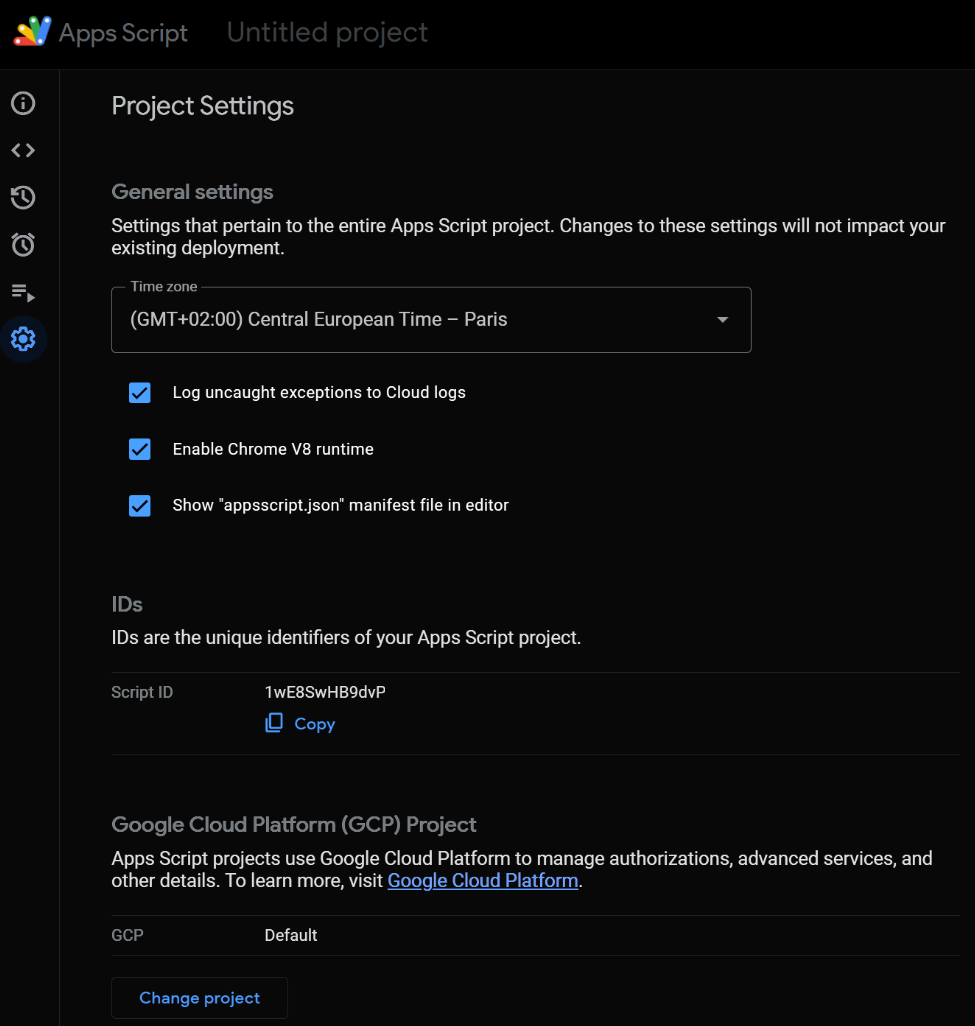
Enable Chrome V8 runtime – Ensures you’re using the latest JavaScript engine (a must for modern features like let, const, arrow functions, Array.prototype.flat(), etc.).
Log uncaught exceptions to Cloud logs – Helps with error tracking, especially in production or when debugging failures over time.
Show appsscript.json manifest file in editor – Turn this on to view and edit your project’s configuration (add scopes, define libraries, change add-on settings, etc.).
IDs section – See your Script ID and your Google Cloud Project ID, both useful when linking APIs, deployments, or enabling advanced services.
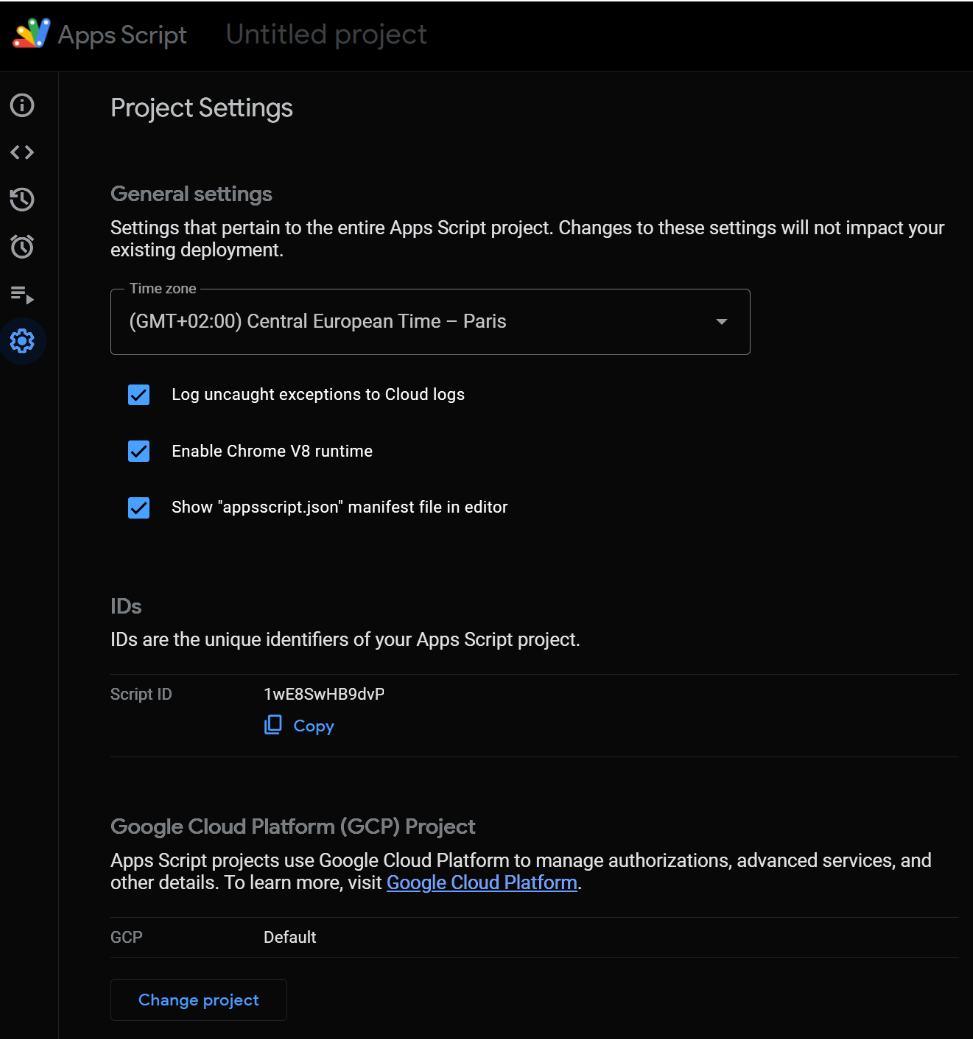
But you can also manually view and edit those values:
Go to: ⬇️
“Project Settings” → “Script Properties” (bottom of the panel)
This opens a UI where you can add, update, and delete properties—super handy for debugging or tweaking configs on the fly.
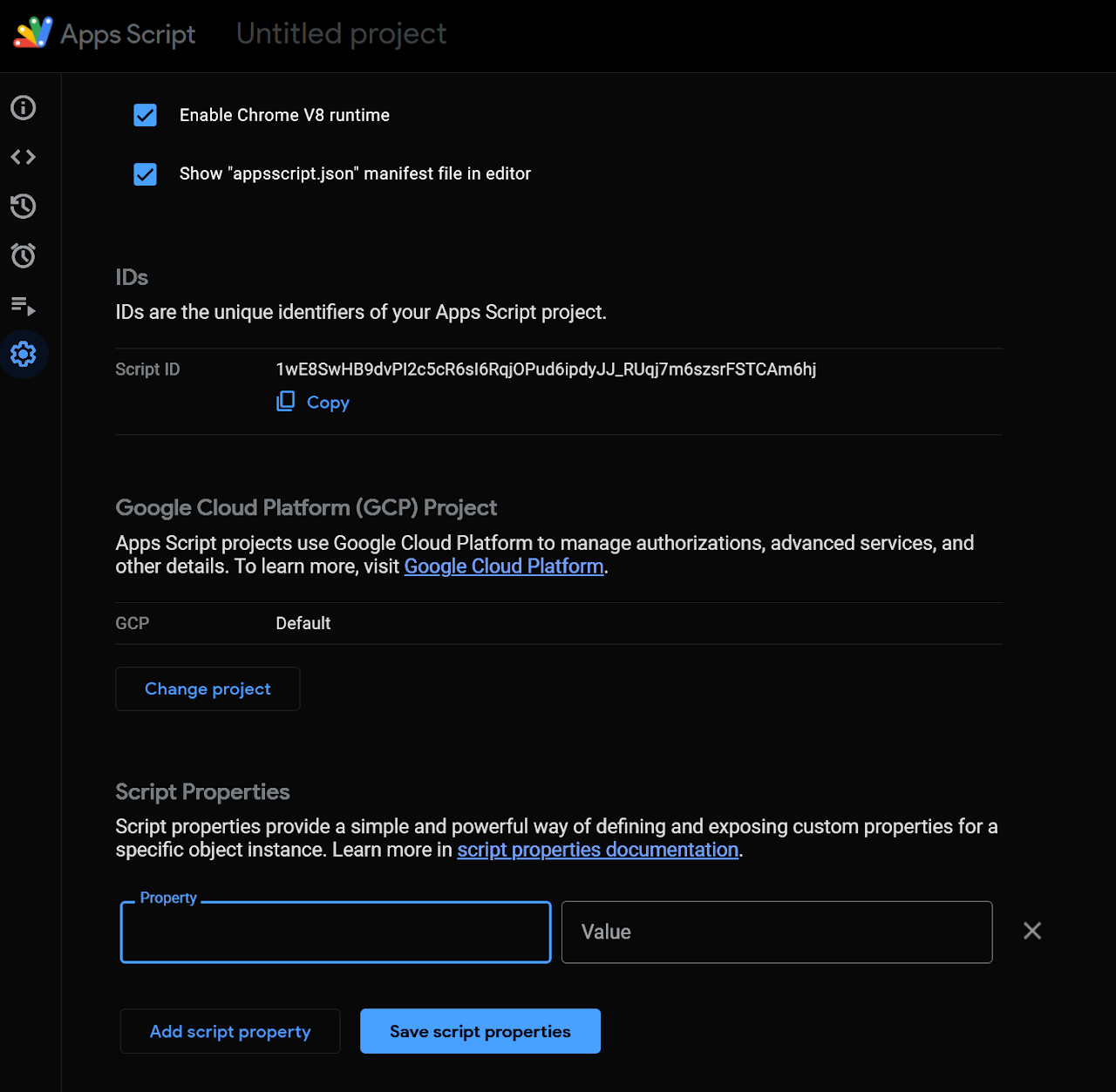

Automate your script without lifting a finger!
Open from:
⚙️ Project Settings → Triggers
In the Triggers panel, you can add:
Time-driven triggers (e.g., every hour, daily, weekly…)
- Form events like onFormSubmit (for Google Forms)
- Spreadsheet events like onEdit or onChange (for Google Sheets)
- And more!
Note: If your Apps Script project is bound to a specific Google product (like Forms, Sheets, or Docs), additional triggers become available depending on the product. For example, onFormSubmit is only available for Forms-bound scripts, and onEdit or onChange are specific to Sheets-bound scripts.
🔍 See all the triggers installed on your account here: https://script.google.com/home/triggers
To see what permissions (OAuth scopes) your script uses, you have two main options:
1. Check the appsscript.json Manifest File
If you’ve enabled the manifest file (from Project Settings), open appsscript.json. You’ll find a “oauthScopes” array like this:
You can manually adjust these scopes if you want to restrict access or clean up unused permissions.
2. Visit the “Project Overview” Section
Scroll to the bottom of the editor page and click on “Project Overview”.
There, you’ll see:
Your Script ID
Your linked GCP project (if applicable)
And the OAuth scopes currently granted to your script.
🔍 This is super useful when debugging permission errors, preparing for publication, or ensuring your script only requests the access it really needs.
{
  "timeZone": "Europe/Paris",
  "dependencies": {
    "enabledAdvancedServices": [{
      "userSymbol": "BigQuery",
      "serviceId": "bigquery",
      "version": "v2"
    }],
    "libraries": [{
      "userSymbol": "OAuth2",
      "libraryId": "LIBRARYID",
      "version": "43"
    }]
  },
  "webapp": {
    "access": "DOMAIN",
    "executeAs": "USER_DEPLOYING"
  },
  "exceptionLogging": "STACKDRIVER",
  "oauthScopes": [
    "https://www.googleapis.com/auth/drive",
    "https://www.googleapis.com/auth/spreadsheets",
    "https://www.googleapis.com/auth/script.external_request",
    "https://www.googleapis.com/auth/bigquery",
    "https://www.googleapis.com/auth/script.container.ui",
    "https://www.googleapis.com/auth/script.send_mail",
    "https://www.googleapis.com/auth/userinfo.email"
  ],
  "runtimeVersion": "V8"
}
That little 🐞 icon in the top bar? That’s a full-on debugger.
Here’s what you can do:
-
Set breakpoints by clicking next to any line number.
-
Inspect variable values while paused.
-
Step through your code line-by-line (using the toolbar at the top).
-
Check the call stack to see how you arrived at a given point.
This is way more powerful than just sprinkling Logger.log() everywhere.
Check this article for more debugging tips!
🕒 timeZone
Sets the default time zone for your script.
Affects trigger times and how Date objects behave.
🔌 dependencies
Enabled Advanced Services
Allows you to use Google APIs like BigQuery directly in your script.
Once enabled, these services become available globally by name.
Libraries
Links to external Apps Script libraries by ID.
You define a local name (alias) and choose a fixed version to use.
Useful for importing reusable utilities like OAuth2.
🌐 webapp
Configuration for deploying the script as a web application.
access controls who can access the web app (e.g. anyone, domain users).
executeAs defines whose permissions are used when the app runs (either the person running it or the person who deployed it).
🚨 exceptionLogging
Specifies how uncaught errors are logged.
Using STACKDRIVER means errors are sent to Google Cloud Logging (formerly Stackdriver).
🔐 oauthScopes
Lists all the permissions your script needs to request from users.
Each scope corresponds to a Google service (e.g., Drive, Sheets, Gmail).
Important for understanding and controlling what your script can do.
Helps with security reviews and minimizes access where possible.
⚙️ runtimeVersion
Specifies which JavaScript engine to use.
V8 is the modern engine that supports ES6+ features (like arrow functions, let, const, async/await, etc.).
{
  "timeZone": "Europe/Paris",
  "dependencies": {
    "enabledAdvancedServices": [{
      "userSymbol": "BigQuery",
      "serviceId": "bigquery",
      "version": "v2"
    }],
    "libraries": [{
      "userSymbol": "OAuth2",
      "libraryId": "LIBRARYID",
      "version": "43"
    }]
  },
  "webapp": {
    "access": "DOMAIN",
    "executeAs": "USER_DEPLOYING"
  },
  "exceptionLogging": "STACKDRIVER",
  "oauthScopes": [
    "https://www.googleapis.com/auth/drive",
    "https://www.googleapis.com/auth/spreadsheets",
    "https://www.googleapis.com/auth/script.external_request",
    "https://www.googleapis.com/auth/bigquery",
    "https://www.googleapis.com/auth/script.container.ui",
    "https://www.googleapis.com/auth/script.send_mail",
    "https://www.googleapis.com/auth/userinfo.email"
  ],
  "runtimeVersion": "V8"
}
Ctrl + Space / Ctrl + Esc: Trigger autocomplete.
Ctrl + /: Toggle comment for lines.
Ctrl + Shift + F: Global search across all files.
Use “Rename Symbol” (right click): Refactors variable names across the entire file.
Explorer panel: Use the sidebar to jump quickly between files, functions, and classes.
Check every available shortcuts right here 🙂