
🚀 How to Push Big Datasets into Google Sheets with Apps Script (Without Crashing!)
July 11, 2025
Copy-pasting big datasets manually into Google Sheets can quickly turn into a nightmare: slowdowns, crashes, weird formatting issues…
you name it.
But guess what? With a little bit of Google Apps Script magic, you can automate the entire process, safely and efficiently.
In this guide, I’ll show you how to push large amounts of data into your sheet like a pro, without risking a browser meltdown.
(And don’t worry, I’ll keep it simple and copy-paste ready.)
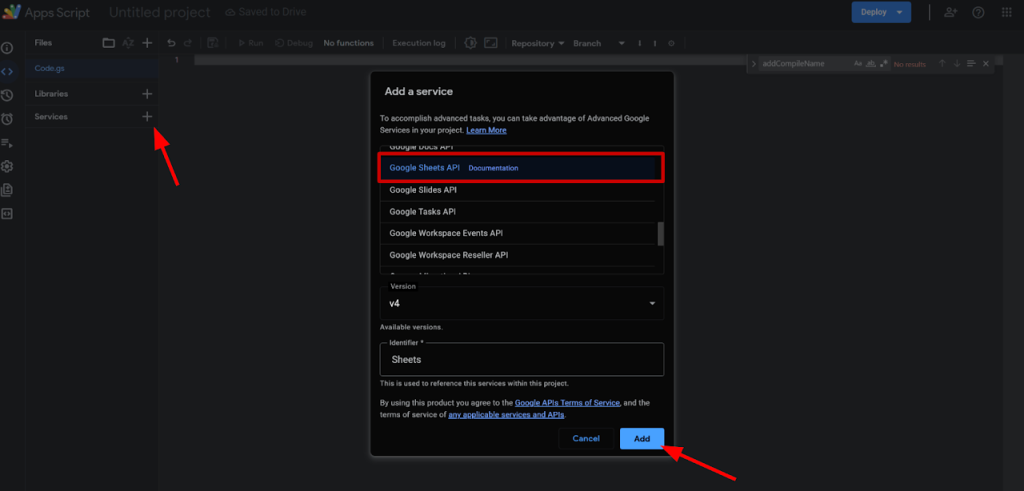
- Step 1: Enable the Google Sheets API in your project
- Step 2: Define your global variables
- Step 3: Prepare and Export Your Data to a CSV
- Step 4: Clear the Target Sheet Before Pushing New Data
- Step 5: Push the New Data into the Target Sheet
- Step 6: Clean Up by Deleting the Temporary CSV File
- Step 7: Bring It All Together with a Main Function
- 📋 Full Script Ready to Copy-Paste
Copy paste this snippet to define all the required variables:
const DRIVE_FOLDER_ID -> Folder Id where you want to store the CSV files
const SOURCE_SPREADSHEET_ID -> The spreadsheet Id, where the data to stransfer is stored
const SOURCE_SHEETNAME -> The sheetname, where the data to stransfer is stored
const TARGET_SPREADSHEET_ID -> The spreadsheet Id, where you want to transfer the data
const TRAGET_SHEETNAME -> The sheetname, where you want to transfer the data
/**
 *
 *
 *  ------- GLOBAL VARIABLES ---------
 *
 *
 */
const DRIVE_FOLDER_ID = "YOUR_DRIVE_FOLDER_ID";
const SOURCE_SPREADSHEET_ID = "YOUR_SOURCE_SPREADSHEET_ID";
const SOURCE_SHEETNAME = "YOUR_SOURCE_SHEETNAME";
const TARGET_SPREADSHEET_ID = "YOUR_TARGET_SPREADSHEET_ID";
const TRAGET_SHEETNAME = "YOUR_TARGET_SHEETNAME";/**
* Prepares and exports data from a Google Sheets sheet to a CSV file in a specified Google
Drive folder.
*
* @throws {Error} If the sheet or folder cannot be found.
*/
function prepareAndExportDataToCSV() {
const spreadsheet = SpreadsheetApp.openById(SOURCE_SPREADSHEET_ID);
const sheet = spreadsheet.getSheetByName(SOURCE_SHEETNAME);
const dataRangeA1 = sheet.getDataRange().getA1Notation(); // For later
const data = sheet.getDataRange().getValues();
const folder = DriveApp.getFolderById(DRIVE_FOLDER_ID);
const csvName = "CSVData_" + Utilities.formatDate(new Date(), Session.getScriptTimeZone(),
"yyyy_MM_dd");
// Clean cell content to remove problematic characters and format dates
const cleanCell = (cell) => {
if (typeof cell === 'string') {
return \`"\${cell.replace(/"/g, '""').replace(/\\n/g, ' ')}"\`;
} else if (cell instanceof Date) {
return Utilities.formatDate(cell, Session.getScriptTimeZone(), "dd/MM/yy");
}
return cell.toString();
};
// Prepare CSV data
const csvData = data.map(row => {
row.map(cleanCell);
return row;
});
const csvContent = csvData.map(row => row.join(",")).join("\n");
// Create CSV file in Google Drive
const fileName = \`\${csvName}.csv\`;
const csvFile = folder.createFile(fileName, csvContent, MimeType.CSV);
Logger.log("CSV file created: " + csvFile.getName());
return {
fileId: csvFile.getId(),
dataRange: dataRangeA1
};
}
This function grabs all the data from your source Google Sheet, cleans it up (removing annoying characters and formatting dates properly), and then exports it into a brand new CSV file inside the Google Drive folder you chose.
It also returns two handy things: the ID of the CSV file and the range of the data you exported (in case you need it later).
In short: it transforms your sheet into a clean CSV file, ready to be used, automatically!
This function wipes out all the existing values from the target sheet before pushing the new dataset.
This step is really important, especially if your script runs automatically and the size of your data can change.
Why? Because if the new dataset is smaller than the previous one, leftover rows from the old data could stay in the sheet, making your results messy or wrong.
Clearing first ensures the sheet is fresh and clean, every single time.
In short: it’s like wiping the whiteboard before you start writing again. 🧽
/**
 * Clears all values from the specified sheet in a given Google Spreadsheet.
 * @throws {Error} If an error occurs while clearing the sheet.
 */
function clearTargetSheet() {
  try {
    Sheets.Spreadsheets.Values.clear(
      {},
      TARGET_SPREADSHEET_ID,
      TRAGET_SHEETNAME
    );
  } catch (error) {
    Logger.log("Error while updating target sheet: " + error.message);
    throw new Error("Error while updating target sheet: " + error.message);
  }
}/**
* Prepares and exports data from a Google Sheets sheet to a CSV file in a specified Google
Drive folder.
*
* @throws {Error} If the sheet or folder cannot be found.
*/
function prepareAndExportDataToCSV() {
const spreadsheet = SpreadsheetApp.openById(SOURCE_SPREADSHEET_ID);
const sheet = spreadsheet.getSheetByName(SOURCE_SHEETNAME);
const dataRangeA1 = sheet.getDataRange().getA1Notation(); // For later
const data = sheet.getDataRange().getValues();
const folder = DriveApp.getFolderById(DRIVE_FOLDER_ID);
const csvName = "CSVData_" + Utilities.formatDate(new Date(), Session.getScriptTimeZone(),
"yyyy_MM_dd");
// Clean cell content to remove problematic characters and format dates
const cleanCell = (cell) => {
if (typeof cell === 'string') {
return \`"\${cell.replace(/"/g, '""').replace(/\\n/g, ' ')}"\`;
} else if (cell instanceof Date) {
return Utilities.formatDate(cell, Session.getScriptTimeZone(), "dd/MM/yy");
}
return cell.toString();
};
// Prepare CSV data
const csvData = data.map(row => {
row.map(cleanCell);
return row;
});
const csvContent = csvData.map(row => row.join(",")).join("\n");
// Create CSV file in Google Drive
const fileName = \`\${csvName}.csv\`;
const csvFile = folder.createFile(fileName, csvContent, MimeType.CSV);
Logger.log("CSV file created: " + csvFile.getName());
return {
fileId: csvFile.getId(),
dataRange: dataRangeA1
};
}This step sends the fresh data from your newly created CSV file directly into the target Google Sheet.
It uses the CSV file we just generated and updates the sheet with its content, covering exactly the same data range as the original one.
Why it matters:
This ensures your target sheet always reflects the latest version of your dataset, nice, clean, and up to date!
In short: it’s like pouring your fresh coffee into a clean mug, no leftovers, no mess. ☕✨
After pushing the data into the target sheet, you don’t really need the temporary CSV file anymore.
This step moves that file to the trash to keep your Google Drive tidy and avoid cluttering it with old files every time the script runs.
Why it matters:
If you skip this step, your Drive will slowly fill up with useless CSVs, and trust me, it’s easy to forget about them until it’s a mess.
In short: it’s like throwing away the pizza box after you eat the pizza. 🍕🗑️
/**
 * Clears all values from the specified sheet in a given Google Spreadsheet.
 * @throws {Error} If an error occurs while clearing the sheet.
 */
function clearTargetSheet() {
  try {
    Sheets.Spreadsheets.Values.clear(
      {},
      TARGET_SPREADSHEET_ID,
      TRAGET_SHEETNAME
    );
  } catch (error) {
    Logger.log("Error while updating target sheet: " + error.message);
    throw new Error("Error while updating target sheet: " + error.message);
  }
}/**
* Pushes data from a source sheet to a target sheet by exporting it to a CSV file and then
updating the target sheet with the CSV data.
* @throws {Error} If exporting the CSV file or updating the sheet fails.
*/
function mainPushThisSheetToTarget() {
// Step 1: Export data in CSV
const csvInfo = prepareAndExportDataToCSV();
if (!csvInfo.fileId) {
throw new Error("CSV export failed.");
}
// Step 2: Empty target sheet
clearTargetSheet();
// Step 3: Update target sheet
updateSheetWithCSVData(csvInfo.fileId, csvInfo.dataRange);
// Step 4: optional, delete generated CSV
deleteGeneratedCSV(csvInfo.fileId);
}Now that all the pieces are ready, we tie everything together in one clean mainPushThisSheetToTarget function.
It handles the whole workflow step-by-step: exporting the data, clearing the target sheet, updating it, and optionally cleaning up the temporary file.
Why I recommend it:
I personally love having a “Main” function in my scripts, it keeps the logic clean, organized, and super easy to maintain.
Instead of digging through scattered code, you just look at the main flow to understand (or modify) what happens. Future-you will thank you. 🙏
In short: it’s like having the table of contents for your script, you immediately see what’s happening and in what order. 📚
Managing large datasets manually can quickly become a headache, but with this simple Apps Script setup, you can automate the entire process — cleanly, safely, and reliably.
Whether you use it for regular updates or one-off pushes, having a structured flow like this will save you a ton of time (and sanity).
Feel free to tweak it to your needs, and happy scripting! 🚀
/**
 * ------- GLOBAL VARIABLES ---------
 */
const DRIVE_FOLDER_ID = "YOUR_DRIVE_FOLDER_ID";
const SOURCE_SPREADSHEET_ID = "YOUR_SOURCE_SPREADSHEET_ID";
const SOURCE_SHEETNAME = "YOUR_SOURCE_SHEETNAME";
const TARGET_SPREADSHEET_ID = "YOUR_TARGET_SPREADSHEET_ID";
const TRAGET_SHEETNAME = "YOUR_TARGET_SHEETNAME";

/**
 * Pushes data from a source sheet to a target sheet by exporting it to a CSV file
 and then updating the target sheet with the CSV data.
 */
function mainPushThisSheetToTarget() {
  const csvInfo = prepareAndExportDataToCSV();
  if (!csvInfo.fileId) throw new Error("CSV export failed.");

  clearTargetSheet();
  updateSheetWithCSVData(csvInfo.fileId, csvInfo.dataRange);
  deleteGeneratedCSV(csvInfo.fileId);
}

/**
 * Clears all values from the specified sheet in a given Google Spreadsheet.
 */
function clearTargetSheet() {
  try {
    Sheets.Spreadsheets.Values.clear({}, TARGET_SPREADSHEET_ID, TRAGET_SHEETNAME);
  } catch (error) {
    Logger.log("Error while updating target sheet: " + error.message);
    throw new Error("Error while updating target sheet: " + error.message);
  }
}

/**
 * Prepares and exports data from a Google Sheets sheet to a CSV file in a specified
 Google Drive folder.
 */
function prepareAndExportDataToCSV() {
  const spreadsheet = SpreadsheetApp.openById(SOURCE_SPREADSHEET_ID);
  const sheet = spreadsheet.getSheetByName(SOURCE_SHEETNAME);
  const dataRangeA1 = sheet.getDataRange().getA1Notation();
  const data = sheet.getDataRange().getValues();
  const folder = DriveApp.getFolderById(DRIVE_FOLDER_ID);

  const csvName = "CSVData_" + Utilities.formatDate(new Date(), Session.getScriptTimeZone(),
  "yyyy_MM_dd");

  const cleanCell = (cell) => {
    if (typeof cell === 'string') {
      return \`"\${cell.replace(/"/g, '""').replace(/\\n/g, ' ')}"\`;
    } else if (cell instanceof Date) {
      return Utilities.formatDate(cell, Session.getScriptTimeZone(), "dd/MM/yy");
    }
    return cell.toString();
  };

  const csvData = data.map(row => row.map(cleanCell));
  const csvContent = csvData.map(row => row.join(",")).join("\\n");

  const fileName = \`\${csvName}.csv\`;
  const csvFile = folder.createFile(fileName, csvContent, MimeType.CSV);
  Logger.log("CSV file created: " + csvFile.getName());

  return { fileId: csvFile.getId(), dataRange: dataRangeA1 };
}

/**
 * Updates a target Google Sheet with data from a CSV file stored in Google Drive.
 */
function updateSheetWithCSVData(fileId, dataRange) {
  try {
    const file = DriveApp.getFileById(fileId);
    const csvContent = file.getBlob().getDataAsString();
    const csvRows = Utilities.parseCsv(csvContent);

    const range = \`\${TRAGET_SHEETNAME}!\${dataRange}\`;
    Logger.log(range);

    Sheets.Spreadsheets.Values.update(
      { values: csvRows },
      TARGET_SPREADSHEET_ID,
      range,
      { valueInputOption: "USER_ENTERED" }
    );
  } catch (error) {
    Logger.log("Error while updating target spreadsheet: " + error.message);
    throw new Error("Error while updating target spreadsheet: " + error.message);
  }
}

/**
 * Moves a generated CSV file to the trash in Google Drive.
 */
function deleteGeneratedCSV(fileId) {
  if (!fileId) {
    console.error('No fileId provided to deleteGeneratedCSV.');
    return;
  }

  try {
    const file = DriveApp.getFileById(fileId);
    file.setTrashed(true);
    console.log(\`File \${fileId} moved to trash.\`);
  } catch (e) {
    console.error(\`Failed to delete file \${fileId}:\`, e);
  }
}